Digital Learning, Devices, Phones & Photos
At Xàbia International College, technology supports learning, collaboration and the development of responsible digital habits. Students use Google Workspace for Education to access materials and complete activities in a supervised environment.
All classrooms are equipped with interactive screens. While they are available in every class, great care is taken to ensure their use always has a clear pedagogical purpose, guided by the teacher and always in service of learning.
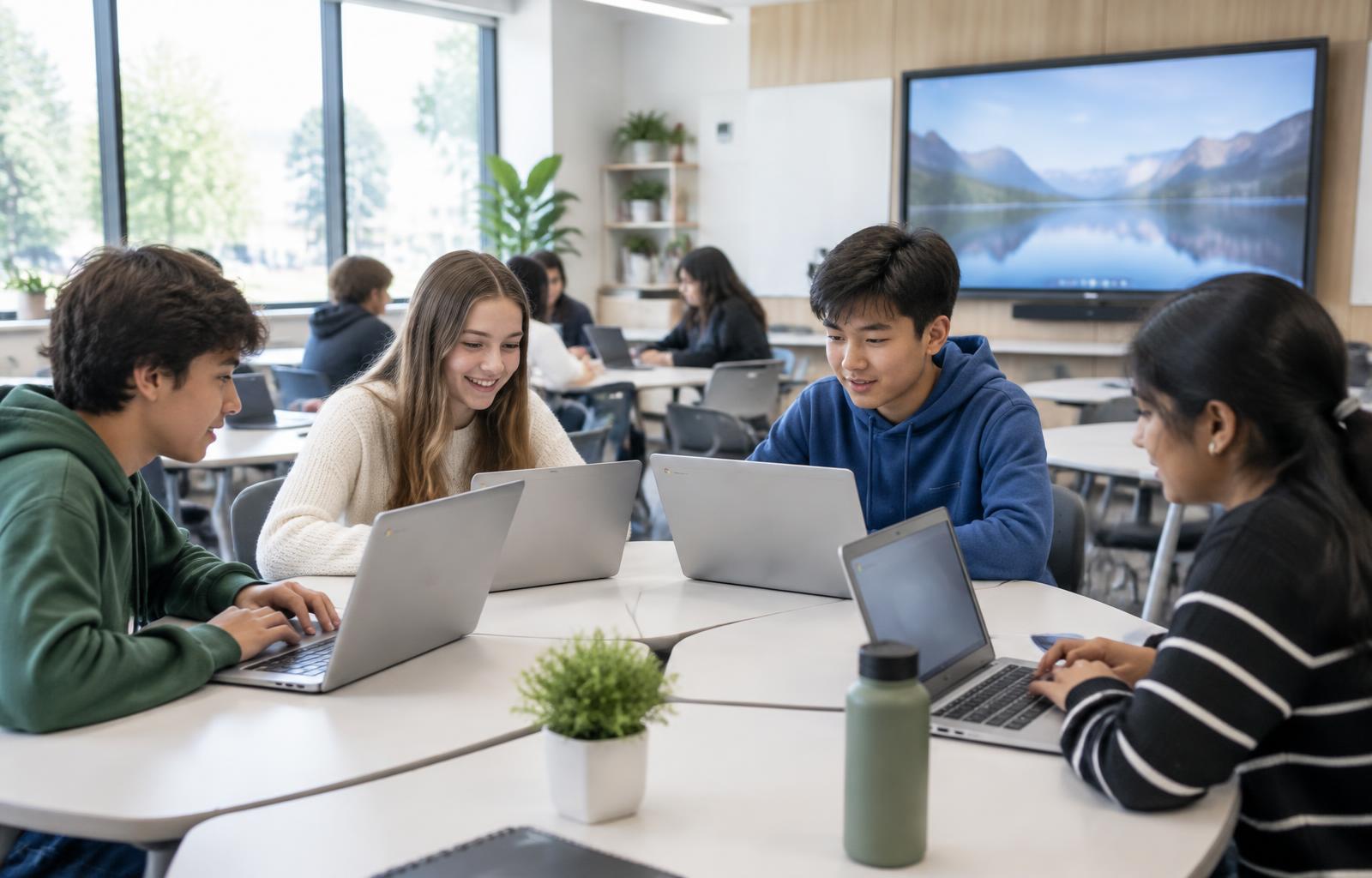
The use of Chromebooks is introduced gradually. In Year 5 and Year 6, students begin working with Chromebooks that belong to the school; from Year 7 onwards, each student must have their own Chromebook.
School tablets & taking devices home
The Digital Device Policy provides for school tablets in Years 3–6. These stay at school and must not be taken home, except in special circumstances. For exceptional home use, parents or guardians must sign the official school tablet home-use agreement. Year 7 pupils must have a Google Chromebook; another type of laptop or tablet is not a substitute.
Photos & Social Media
Please let us know if you do NOT wish a photo of your child to be taken and used in promotional material.
Mobile Phones & Smartwatches
Mobile phones are NOT permitted at school. Children should not need to contact their parents or make calls during the school day — in an emergency, they can use the school phone. Children must also not wear smartwatches at school.
Children who travel by bus may bring a mobile phone to school, but it will be collected by the form tutor during registration and returned at the end of the day. Mobile phones are not permitted at school under any other circumstances.
Under the 2026/27 Digital Device Policy, the only exception to the mobile phone ban is for pupils who travel to school by bus. Needing a phone for plans after school does not create an additional exception. In an emergency, pupils can use the school phone.
Google Classroom
Every student receives a school account with access to Google Classroom, Drive, Docs, Slides and Sheets. Teachers use Google Classroom to share materials, announcements, homework and activities.
Students join each class using a code provided by their teacher or by accepting an invitation in Google Classroom. Within the class they can check assigned tasks, read the instructions and see the deadlines.
Parents and guardians can receive an invitation to get email summaries. These can be sent daily or weekly and include recent class activity, upcoming deadlines and work that was marked as missing when the summary was generated. Summaries do not replace communication with the teacher.
School accounts and passwords are personal. Students must keep their login details secure and ask their teacher or the school office for help if they cannot access their account.
Google Classroom: family guide
1. Sign in
Go to www.google.com and select Sign in in the top-right corner. Enter your child's XIC email address and password, then select Next. The school provides these details; the email address is normally formed with the student's first initial and surname.
2. Open Classroom
Once signed in, select the nine-dot Google apps icon in the top-right corner and choose Classroom. The same menu also provides access to Gmail, Drive, Docs, Sheets, Slides, Calendar and Meet.
3. Join a class
Select the + symbol and then Join class to enter a code supplied by the teacher. Alternatively, when a teacher sends an invitation, select Join on the class card on the Classroom home page.
4. Find the main areas
Open the class you wish to view. Stream shows announcements and teacher updates; Classwork contains assignments and topics; People lists the teachers and classmates. The home page also highlights upcoming assignments.
5. Review assignments
In Classwork, families can review topic headings, assignment titles, instructions, due dates, status, grades when available, and any attached files or links. Select an assignment to open all its details and the student's files.
6. Guardian email summaries
After accepting the school's invitation, guardians may choose daily or weekly summaries. These emails include recent class activity, work due soon and assignments marked as missing when the email was sent. They are summaries only and do not provide direct access to the student's Classroom account.
7. Access from any device
Google Classroom and Google apps can be used on a desktop computer, Chromebook, tablet, iPhone or Android device with an internet connection. The mobile apps are available from the App Store and Google Play.
Chromebooks for Year 7 to Year 11
Students in Year 7 to Year 11 need a school-approved Chromebook to use in class and for independent work. This includes Year 7, whose classes are based at the Early Years and Primary campus.
The approved Chromebook gives access to the learning tools and allows XIC's digital safety and classroom management systems to be applied consistently. Before joining, families receive instructions on the recommended model and how to purchase it. Please check with the school before buying a different model, as it may not meet the school requirements.
Looking after the Chromebook
Students must bring their Chromebook fully charged every day and take care of it both in class and when moving around school. During the school day, the device is used for educational purposes and in line with the school rules and staff instructions.
The school does not take responsibility for lost or damaged digital devices. Pupils are responsible for their devices and their contents, and must not let other people use them. If a device is lost, damaged or stops working, please notify the school to discuss the next steps.
Permitted use, apps & games
These rules cover phones, iPads, tablets, laptops, smartwatches, MP3/MP4 players, e-readers and any internet-enabled device. Laptops and tablets may be used only for educational purposes during teacher-led lessons or independent study when needed and authorised. Pupils must follow the E-Safety and Acceptable Use policies they have signed.
- Only approved academic apps may be installed or used. Educational apps need teacher approval before downloading, and pupils must ask permission before playing any approved educational game. Devices are not used for non-educational games during ‘golden time’; unauthorised games such as Roblox are not allowed.
- At the start of the academic year, staff remove existing apps, games and media from school tablets. Frequently used educational websites may be bookmarked.
- Screensavers must be a plain background colour or the XIC logo. Pupils must not download pictures or photos to use as screensavers.
- Pupils may not use YouTube on school devices. If a clip is needed for learning, the teacher shows it on the classroom interactive screen.
Unauthorised use & consequences
- Social media and messaging services are not permitted. Internet searches must be requested by the teacher, and use outside the classroom must be required by staff.
- Pupils must not use email to communicate with anyone outside the school system, or use media services such as Amazon Music, Netflix or BBC iPlayer.
- Taking photos or videos of pupils or staff is not permitted unless requested as part of assigned schoolwork. Photographing or making audio/video recordings of any member of the school community also requires their consent.
Inappropriate use means the pupil loses the right to use the device for the remainder of the school day and possibly longer, even if this affects learning in later lessons. Cyberbullying is completely unacceptable and is handled as serious misbehaviour under the school's E-Safety Policy.
Online Safety
XIC teaches its students to use technology respectfully and responsibly. School devices and accounts are subject to the school's safeguarding and acceptable use procedures, including filtering and monitoring systems in the school environment.
Students must protect their login details, respect other people's privacy and use digital tools appropriately. They must not access inappropriate content, try to bypass security measures or use technology to harm or exclude others. Any concerns about online safety or behaviour should be reported to a teacher, tutor or trusted adult at school.
Online safety at home & reporting concerns
The policy recommends that children under 14 do not access the internet unsupervised and do not use chat rooms or become members of social networks. Families are encouraged to support these safeguards at home.
- Use a password or PIN to protect devices, keep it confidential and do not share devices or passwords. Never give your own or friends' phone numbers or email addresses to people you do not know.
- If a message is upsetting, do not reply: take a screenshot and tell a member of staff. Serious incidents may also be reported to the police. If you receive a rude or embarrassing image or message about someone else, do not forward it; tell staff.
- Ask permission before taking a photograph and before posting someone's picture on social media. Think before sharing: once an image is sent, you lose control of it and it may become public.
- Always communicate courteously and respectfully. Offensive language, violent or degrading images, broadcasting music, transferring inappropriate material and illegally sharing copyrighted content are not allowed. Using a device to threaten, harass or offend someone, or transmitting certain images, can constitute a criminal offence.
Need help?
For questions about the Chromebook, the school account or Google Classroom, please contact the secretary of your child's campus. They will pass the query on to the right person.